Installation document for Show Stock Status CLEARLY With Label Ribbon
Requirements
Please make sure you have set the correct permissions for the software as in the list below.
| Administrator permission for OCMOD(How to use OCMOD Opencart ?) | Important |
| FTP settings(How to setup FTP for Opencart?) |
1. Upload
Method 1: Directly upload from only one xxx.ocmod.zip file
Notice: You must extract downloaded zip file to get installation file.The file name must have extension Show Stock Status CLEARLY With Label Ribbon OC v*.* - v*.*.ocmod.zip,
so you should not change the file name under any circumstances.
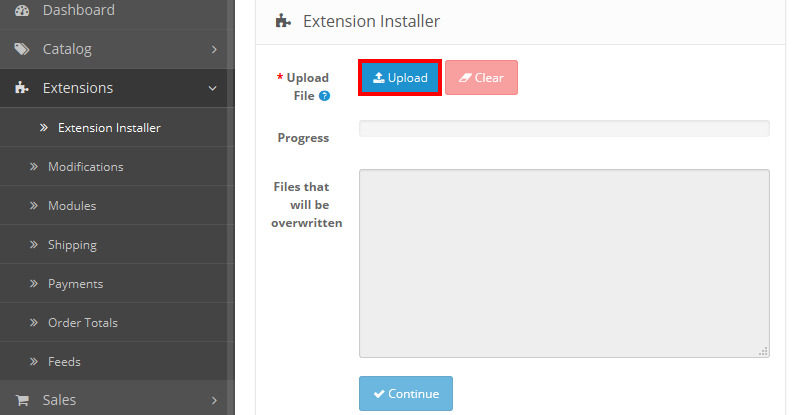
Firstly, go to your Opencart admin panel -> Extensions -> Extension installer -> Upload your file -> Continue
Method 2: https://mmosolution.com/blogs/how-to-use-ocmod-opencart-by-FTP-without-extension-installer.html
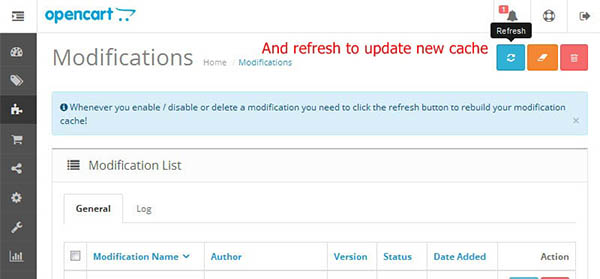
Secondly, you should go to Modifications -> Click refresh and clear buttons as per image below:
2. Add permission
Login to your Opencart admin panel and go to System → Users → User Group
Click edit your user group name (Generally, default user group name is Administrator as Image 2
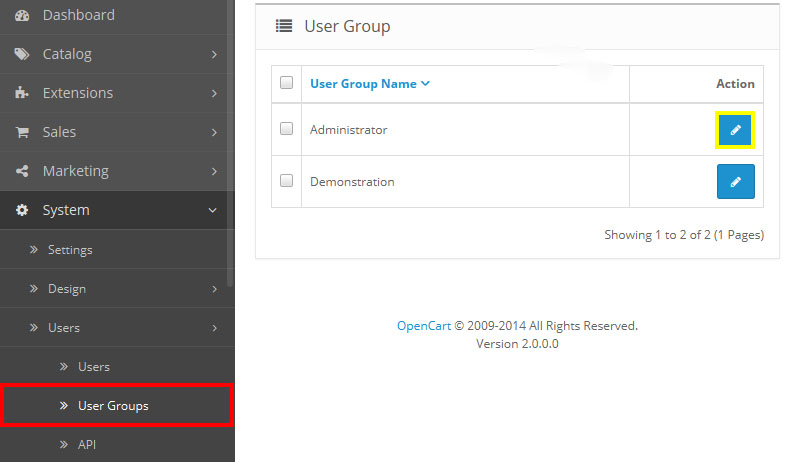
Image 2
Next, check access permission, modify permission for Show Stock Status CLEARLY With Label Ribbon as image 2.1
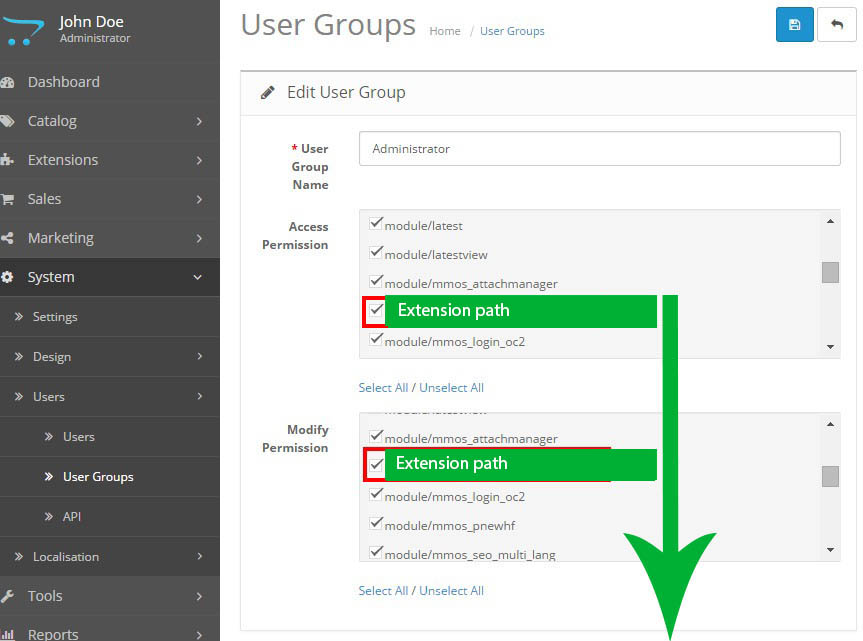
- module/product_label_pro
3. Installation
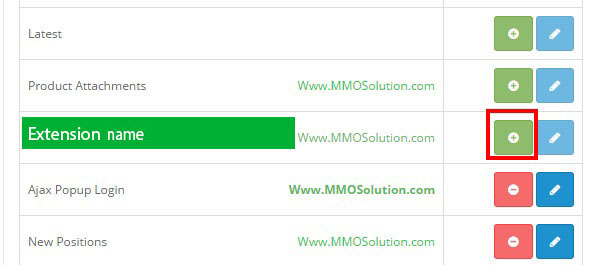
Go to Extensions → Modules Find Show Stock Status CLEARLY With Label Ribbon and click install as image 3
4. Configuration
Congratulations!
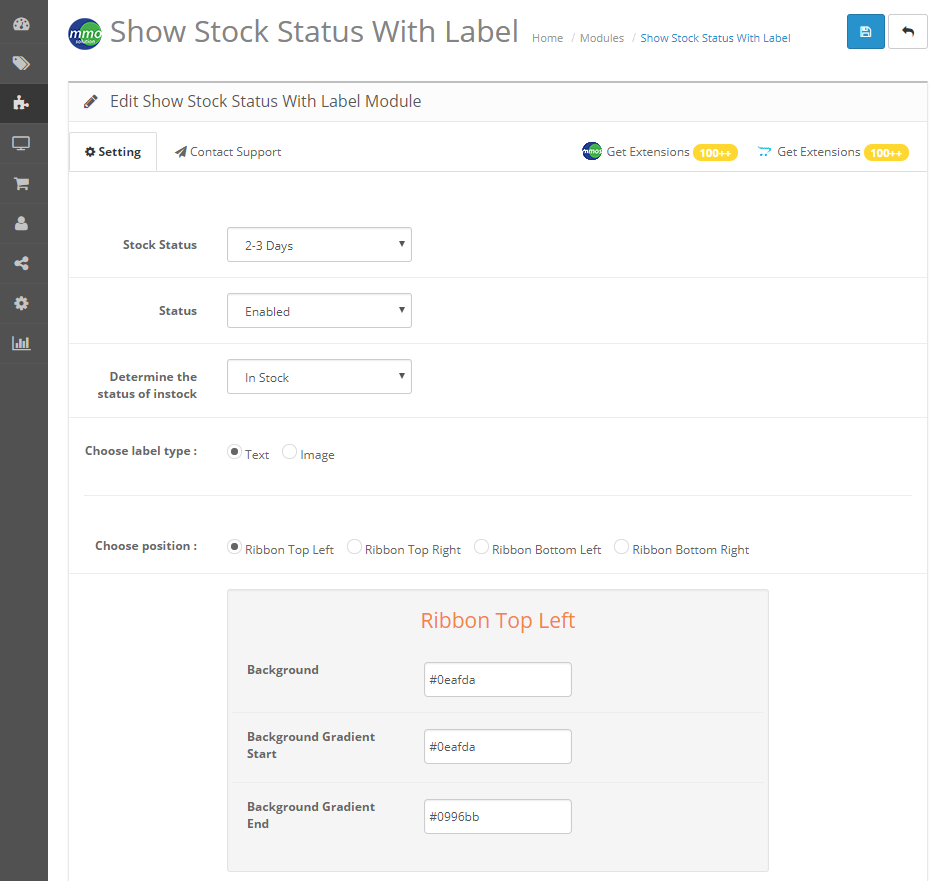
Show Stock Status CLEARLY With Label Ribbon is now installed and configured. You can access it from Extensions > Tools > Show Stock Status CLEARLY With Label Ribbon then click [ Edit ]

5. Configure & Enjoy your new MMOS extension!
5. Configure& Enjoy new extension